> ## Documentation Index
> Fetch the complete documentation index at: https://docs.trynia.ai/llms.txt
> Use this file to discover all available pages before exploring further.
# Vault
> Agent-maintained personal knowledge bases that get smarter over time.
Vault is an agent-maintained personal wiki layered on top of your indexed Nia sources. Instead of searching raw documents every time, the agent reads your sources once and compiles them into a structured, interlinked markdown wiki that gets smarter over time.
You curate sources and ask questions. The agent does the summarizing, cross-referencing, and bookkeeping — so knowledge compounds instead of getting lost in chat history.
***
## Quick Start
The fastest way to get started:
```bash theme={null}
npx nia-wizard@latest
```
The wizard handles everything: creates your account, sets up the API key in your config so any agent can authenticate securely, installs the CLI skills, and walks you through creating your first vault. After the wizard finishes, your agent is fully configured — no manual key management needed.
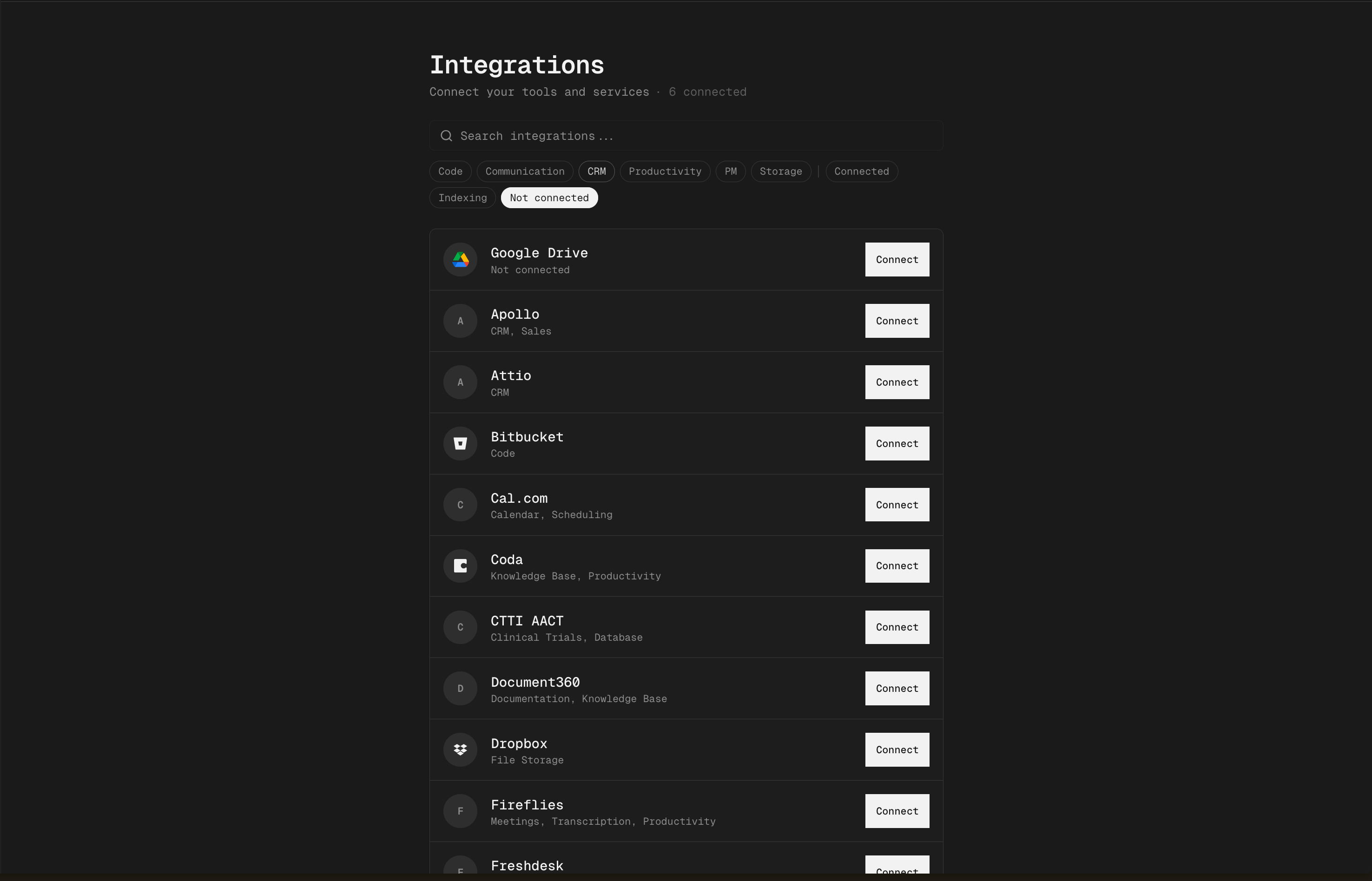
Head to [Integrations](https://app.trynia.ai/settings/integrations) and connect the services you want in your knowledge base — Slack, Google Drive, Notion, GitHub, Linear, and 40+ more.
Once sources are connected, just tell your agent something like:
> "Index my entire life — connect all my Slack, Drive, Notion, and create a vault called My Life with everything in it."
The agent understands Nia's CLI and will run the right commands: create the vault, add your sources, and trigger the first ingest. You can also do it manually:
```bash theme={null}
nia vault init "My Life" --from-source ,
```
***
## How It Works
### Three Layers
1. **Raw sources** — your indexed Nia sources (repos, docs, Slack, Drive, Notion, iMessage, etc.). The vault reads from these but never modifies them.
2. **The wiki** — markdown pages the agent generates. Concepts, entities, cross-references, timelines. The agent owns this layer entirely.
3. **The schema** — `schema.md` inside the vault. You and the agent co-evolve it to refine conventions.
### Page Structure
Every wiki page uses a dual-section format:
```markdown theme={null}
# WebSocket Authentication
WebSocket auth uses JWT tokens validated during the handshake upgrade.
The token is verified by middleware before the connection is promoted.
---
## Timeline
- **2026-04-08** | JWT validation found in ws_middleware.py [Source: nia-app repo]
- **2026-04-05** | Team discussed token refresh in Slack [Source: Slack #eng-backend]
## Sources
- nia-app repository (source-id-123)
```
* **Compiled Truth** (above `---`): Current best understanding. Rewritten when evidence changes.
* **Timeline** (below `---`): Append-only evidence trail. Never edited, only appended to.
### Typed Wikilinks
Pages cross-link using `[[wikilinks]]`. For entity relationships, typed links add semantic meaning:
```markdown theme={null}
[[Stripe|works_at]] — employment/affiliation
[[React|uses]] — technology usage
[[OAuth 2.0|extends]] — builds upon
[[Old Claim|contradicts]] — factual conflict
```
The graph visualization color-codes edges by relationship type.
***
## Workflows
### Ingest
For each source without existing pages, Claude reads the source and produces concept/entity pages with cross-references.
```bash theme={null}
nia vault ingest # new sources only (idempotent)
nia vault ingest --force # re-synthesize all sources
```
### Sync
Regenerates pages whose underlying sources have been re-indexed. Rewrites the compiled truth, appends to timeline. Pages you edited are always skipped.
```bash theme={null}
nia vault sync
```
### Lint
Scans the vault for orphan pages, stale pages, broken wikilinks, and contradictions. Writes `lint-report.md`.
```bash theme={null}
nia vault lint
```
### Dream Cycle
The self-improving loop. Scans existing pages, discovers entities that are mentioned but lack their own page, synthesizes new pages, finds non-obvious connections between pages from different sources, detects contradictions, and writes `dream-report.md`.
```bash theme={null}
nia vault dream
# Enable weekly automatic dream (Sundays 3am UTC)
nia vault auto-dream on
```
### Refresh
Combined ingest + sync in one pass. This is what the daily auto-sync cron runs.
```bash theme={null}
nia vault refresh
```
***
## Browsing the Vault
### Interactive Shell
Drop into a writable bash session with the vault mounted as a filesystem:
```bash theme={null}
nia vault open
```
All standard Unix tools work: `tree`, `cat`, `grep`, `find`, `ls`, pipes.
### One-Shot Commands
For agent tool loops, use `--c` to execute a single command:
```bash theme={null}
nia vault open --c "tree"
nia vault open --c "cat /index.md"
nia vault open --c "grep -rl 'authentication' ."
```
### Search
Hybrid semantic + keyword search scoped to the vault:
```bash theme={null}
nia vault search "how does auth work"
```
### Filesystem via `nia sources`
Since vaults are mounted as sources, all existing filesystem commands work:
```bash theme={null}
nia sources tree
nia sources read /concepts/authentication.md
nia sources grep "webhook"
nia sources write /notes/finding.md --body "..."
```
Files you write are automatically protected from sync via `provenance.last_human_edit`. Your edits will never be overwritten by background workflows.
***
## Wiki Layout
```
/
├── schema.md User-owned conventions. Never overwritten by sync.
├── index.md Auto-maintained catalog of every page.
├── log.md Append-only history of ingests, syncs, lints, dreams.
├── META.md Vault metadata snapshot.
├── concepts/ LLM-generated concept pages.
├── entities/ LLM-generated entity pages (people, products, tools, papers).
├── notes/ User-curated freeform pages. Always protected from sync.
├── lint-report.md Latest lint output.
└── dream-report.md Latest dream cycle output.
```
***
## Web UI
The vault workspace at [app.trynia.ai/vaults](https://app.trynia.ai/vaults) provides:
* **Page tree** — browse concepts, entities, and notes in a sidebar
* **Graph view** — force-directed visualization of wikilinks, color-coded by relationship type
* **Rich editor** — edit pages with TipTap (wikilink autocomplete, markdown round-trip)
* **Search palette** — `Cmd+K` for fuzzy page search + AI-powered Q\&A
* **Dream/sync controls** — trigger workflows from the run menu
* **Settings** — toggle auto-sync and auto-dream, edit schema
***
## Personal Data Sources
Vault can ingest personal data through the [Local Sync](/local-sync) daemon:
| Source | What's indexed |
| ----------------- | ----------------------------------- |
| **iMessage** | Conversations with contact metadata |
| **WhatsApp** | Messages with group chat info |
| **Apple Notes** | Notes with folder structure |
| **Contacts** | Names, emails, phone numbers |
| **Reminders** | Lists with completion status |
| **Stickies** | macOS sticky notes |
| **Screenshots** | OCR'd screenshot text |
| **Local folders** | Any directory on disk |
Plus 47 cloud connectors (Slack, Drive, Notion, Linear, Salesforce, etc.) via the [Integrations page](https://app.trynia.ai/settings/integrations).
**macOS permissions**: Personal data sources like iMessage and Apple Notes require **Full Disk Access** for the Nia sync daemon. Go to System Settings → Privacy & Security → Full Disk Access and add your terminal app. See [Troubleshooting](/troubleshooting) if indexing fails.
***
## Wiring Into Your Project
### Automatic (recommended)
```bash theme={null}
nia vault init "My Project" --from-source ,
```
This creates the vault, triggers ingest, and appends a setup block to your project's `CLAUDE.md` / `AGENTS.md` automatically.
### Manual
```bash theme={null}
# Append to your agent instructions file
nia vault agents >> CLAUDE.md
# Or install as a skill
nia vault skill > .claude/skills/my-vault/SKILL.md
# Or pipe a guided setup prompt into your agent
nia vault setup | claude
```